There is no Polish version yet, so this is shown in English.
View original (KO)
rawsector


Learn how to install MixRelay, make your first audio route, record, update and uninstall.
Screenshots use the English interface and sample data.
Supported distributions are Debian 13, Ubuntu 26.04 and Kali rolling on x86_64 or arm64, and Arch on x86_64. Ubuntu 24.04’s standard audio packages are below the required versions.
Normal Linux virtual machines are supported. Docker audio environments and Windows are unsupported.
MixRelay-Installer-VERSION.pkg./Applications/MixRelay/MixRelay.app. A restart is not required.Public macOS installers must be Developer ID signed and notarized. macOS may ask you to confirm opening downloaded software.
If macOS reports an unidentified developer, an unverifiable package, damage or malware, stop and obtain a fresh official installer or contact support. Do not disable Gatekeeper or remove quarantine attributes. See Apple’s guidance on opening downloaded apps.
Save one package for your distribution and CPU architecture in ~/Downloads. Move older MixRelay installers of the same format elsewhere so the commands select only that file. Paste the commands for your distribution into a terminal.
RPM packages also require PipeWire 1.2, WirePlumber 0.5 and glibc 2.39 or later.
cd ~/Downloads
sudo apt update
sudo apt install ./MixRelay_*_"$(dpkg --print-architecture)".debcd ~/Downloads
sudo apt update
sudo apt install ./MixRelay_*_"$(dpkg --print-architecture)".debcd ~/Downloads
sudo apt update
sudo apt install ./MixRelay_*_"$(dpkg --print-architecture)".debcd ~/Downloads
sudo dnf install ./MixRelay-*."$(uname -m)".rpmcd ~/Downloads
sudo pacman -U ./mix-relay-*-x86_64.pkg.tar.zstAfter installation, open MixRelay from your application menu. Run it in your signed-in user session.
Open MixRelay, wait for its audio engine, then select the sources you want to use.
Connecting to MixRelay appears while audio is prepared. If MixRelay is required appears, install the complete product. If Update MixRelay appears, update the installed product. For Cannot connect to MixRelay, choose Retry connection after checking the installation.
Build a graph from source, processor and output nodes. Cables carry audio between individual channels.
Use New graph to create a graph and Add node for Source, Processor or Output. Select a graph in Graphs to edit it. Selection does not turn other graphs off. Licensed graphs can run together.
Capture a running application and route its audio through your graph.
Add node → Source and select the app under Running applications.Use MixRelay IO to exchange audio with other apps. Its device format is separate from the recording format.
The default virtual device is MixRelay IO.
To receive audio another app plays to this device, select it under Add node → Source → MixRelay Virtual I/O (Device → graph).
To send the graph mix to an app such as OBS, select the device under Add node → Output → MixRelay Virtual I/O (Graph → device). In the receiving app, choose MixRelay IO as the audio input.
Built-in processing is available without an instance limit in the free edition.
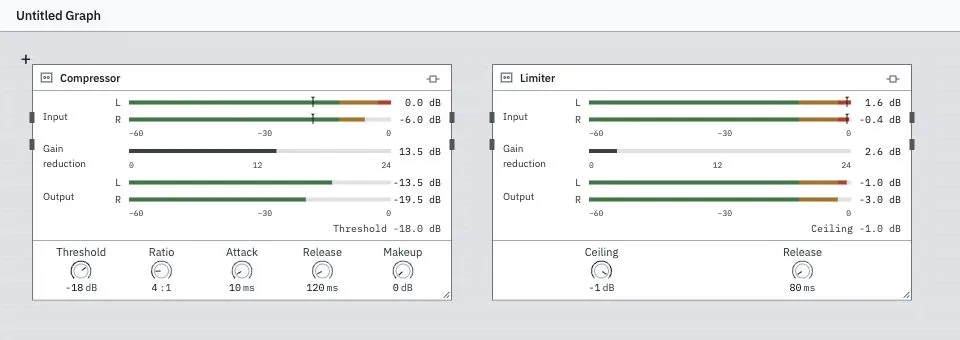
Choose an effect from Add node → Processor, then connect its input and output channels. Adjust its parameters in Options.
Available effects are Compressor, Limiter, Equalizer, High-pass, Low-pass, Gate, Expander, Channel utility, Mono pan, Stereo balance, Delay, Ducking, Reverb and Chorus.
Install effects with their vendor’s installer, then discover them in MixRelay.
The list contains audio effects that pass discovery and layout checks. Instrument and MIDI workflows are not provided. A supported format does not guarantee that every plug-in, architecture or channel layout will work. The free edition allows two external plug-in instances, including instances that are off. The number of discovered effects is unrestricted.
Record any connected graph signal to an RF64 WAV file.
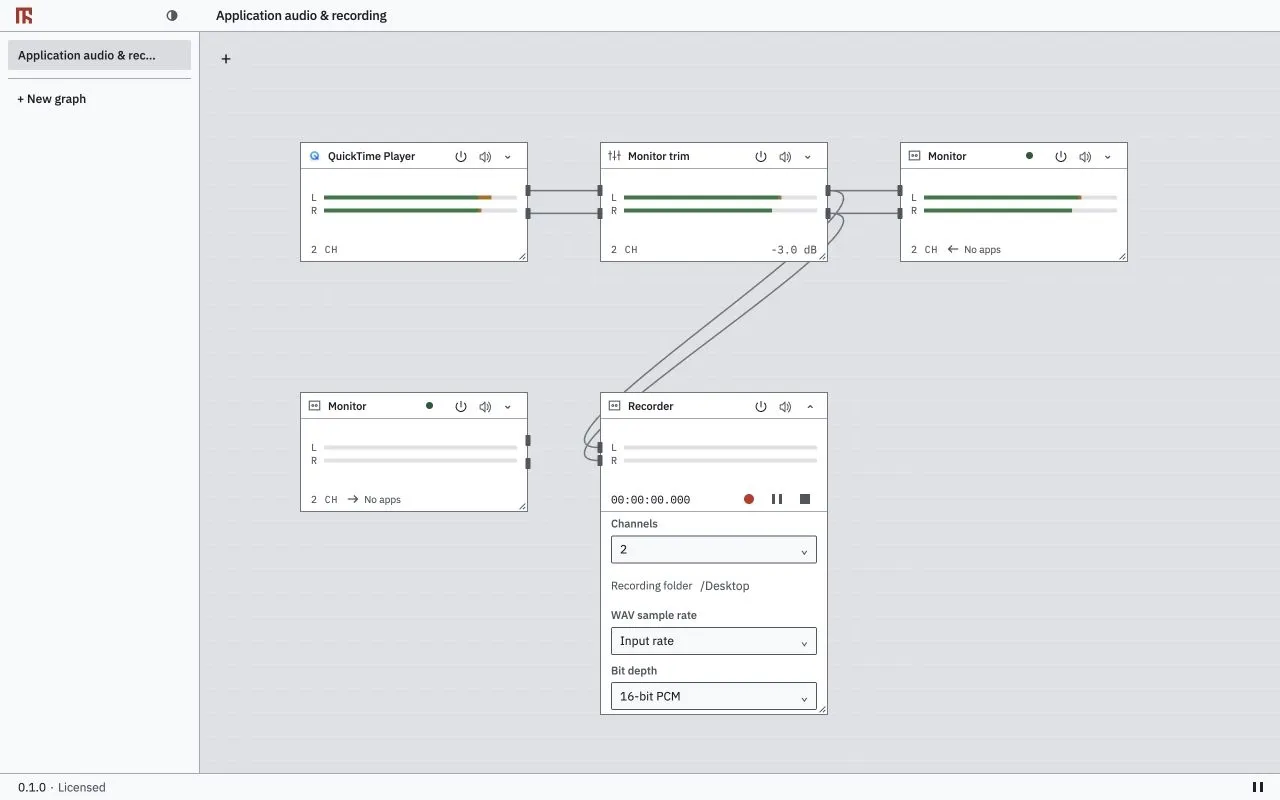
Add node → Output → Recorder. Connect the channels you want to record.Options. Set Channels and use Choose folder… for the Recording folder.Control graph nodes from Stream Deck on macOS.
Requires macOS 14.2 or later, Stream Deck 6.6 or later and MixRelay running.
.streamDeckPlugin file with Stream Deck.Power, Mute, Volume or Recording action.The free edition has no time limit. A paid licence expands the same installed product.
Feature | Free edition limit |
|---|---|
Graphs | One graph, with saving, loading and restoration. |
Inputs | Two physical-input or individual app-capture nodes in total. Virtual-device sources do not count towards this input limit. |
Outputs | Two distinct output devices, including virtual output devices. Repeated references to the same device count once. Recorders do not count as output devices. |
Virtual devices and mappings | One virtual device. Four channel connections from editing graphs into virtual devices in total; one stereo pair counts as two. Connections between effects or into physical outputs and recorders do not count towards this mapping limit. |
Effects | Unlimited built-in effects with parameter and preset editing. Two external plug-in instances, including instances that are off. |
Recording | One recorder, up to two channels and two recorded hours per take. |
Update MixRelay as one complete product. Updates are downloaded and installed manually.
Choose Check for updates in the app or status menu. MixRelay also checks at startup and every 24 hours. The screen shows Installed and Latest release.No release has been published yet. means no public release exists. Could not check this product. Try again when online. means the check failed. Neither message confirms that your installed version is up to date.
Remove the complete product with its uninstaller or Linux package manager.
Save any work you need as a .mix file. Stop recording and quit call and recording apps. If you want to release this computer’s paid activation, use Deactivate this device while online before removal. Uninstalling does not confirm server-side deactivation.
Check the current message and signal path before changing or removing saved work.
Pause, node power, Mute and the connected channel numbers. A selected graph is not an on/off indicator.The free edition requires no purchase activation. The app uses the first supported OS language preference and falls back to English. Appearance offers System, Light and Dark.
When you first use an application source, macOS can request permission to capture application or system audio. When you use a microphone or another physical audio input, macOS can request microphone access. Allow the requested access if you want to use that source. These are separate permissions; microphone approval alone does not enable application capture.
If access was denied, open System Settings → Privacy & Security. Check the audio capture control under Screen & System Audio Recording and check Microphone for physical inputs. Labels and prompts vary by macOS version. Enable access for the MixRelay entry responsible for the request and follow any macOS restart instruction. Then retry the source in MixRelay. See Apple’s screen and system audio permission guide.
On Linux, sources use the normal PipeWire session. A macOS-style permission prompt is not part of this flow.
New graph, enter a Graph name and choose Create if none exists. The free edition allows one graph.Add node → Source to choose a running app or an audio input.Add node → Output to choose an audio output. Connect each source output channel to an input channel on the output node.To send the mix to OBS or a DAW, use MixRelay IO as a virtual output and select it as the input in the receiving app.
Adjust node settings in Options.
To rename a node, double-click its name, press F2 while it has focus, or choose Rename display name from its menu. The name applies only to that node. Clear it to restore the original name.
Graph edits and layout are saved automatically. A save warning means changes may be lost after restart.
To keep a workspace file, use File → Save or Save As… to save a .mix file. New Workspace and Open… ask before replacing the current contents. Opening a workspace does not install missing devices or plug-ins.
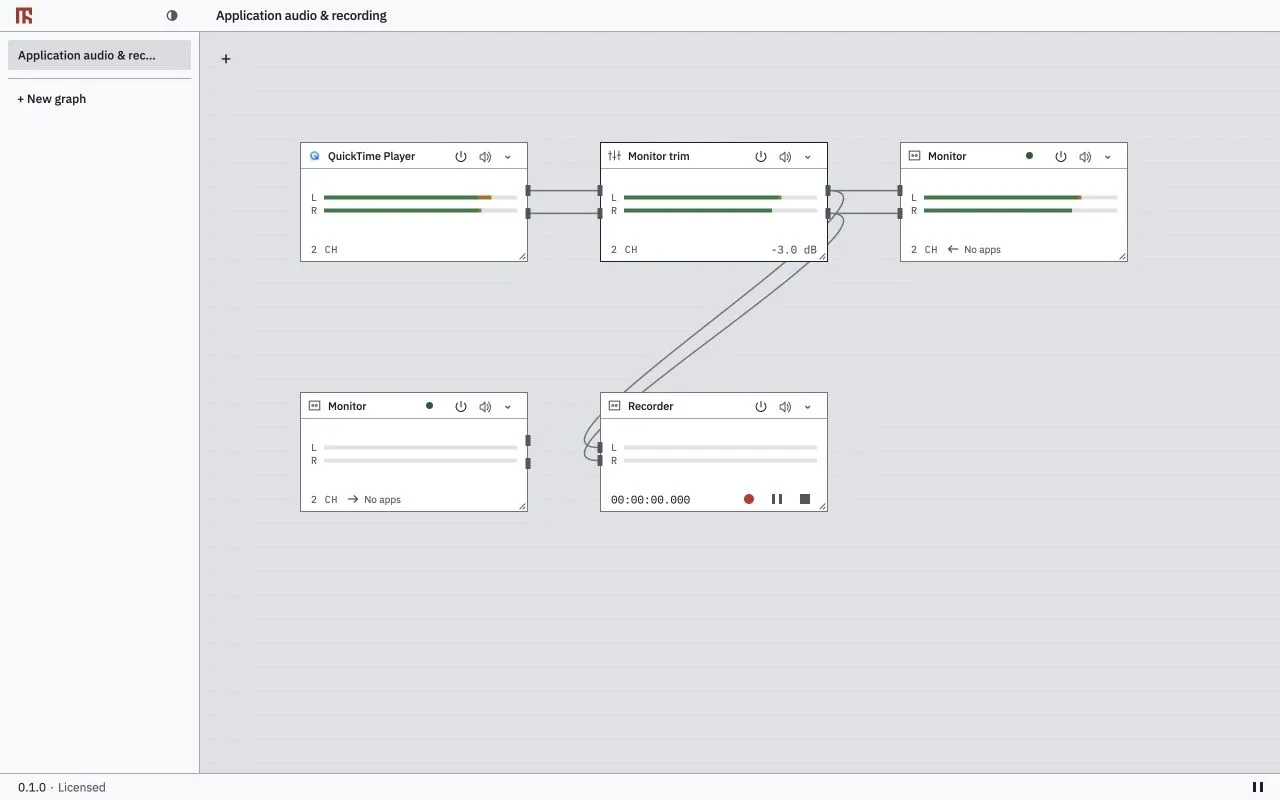
Drag an output port to an input port. For a stereo pair, connect both channels. Hold Shift to select more output channels on the same node, then drag the selection to the destination’s first channel. The destination channel offset is preserved. Press Escape to cancel and clear the channel selection.
To remove a connection, right-click a cable and choose Delete cable, or use Disconnect channel or Disconnect selected channels in a port menu. You can also select a node or cable and press Delete or Backspace to delete it.
Use Fit graph to bring the graph into view. Undo graph edits with Command+Z on macOS or Ctrl+Z on Linux; add Shift to redo.
Delete graph stops that graph’s audio and recordings. Graph deletion cannot be undone; saved workspace files remain.
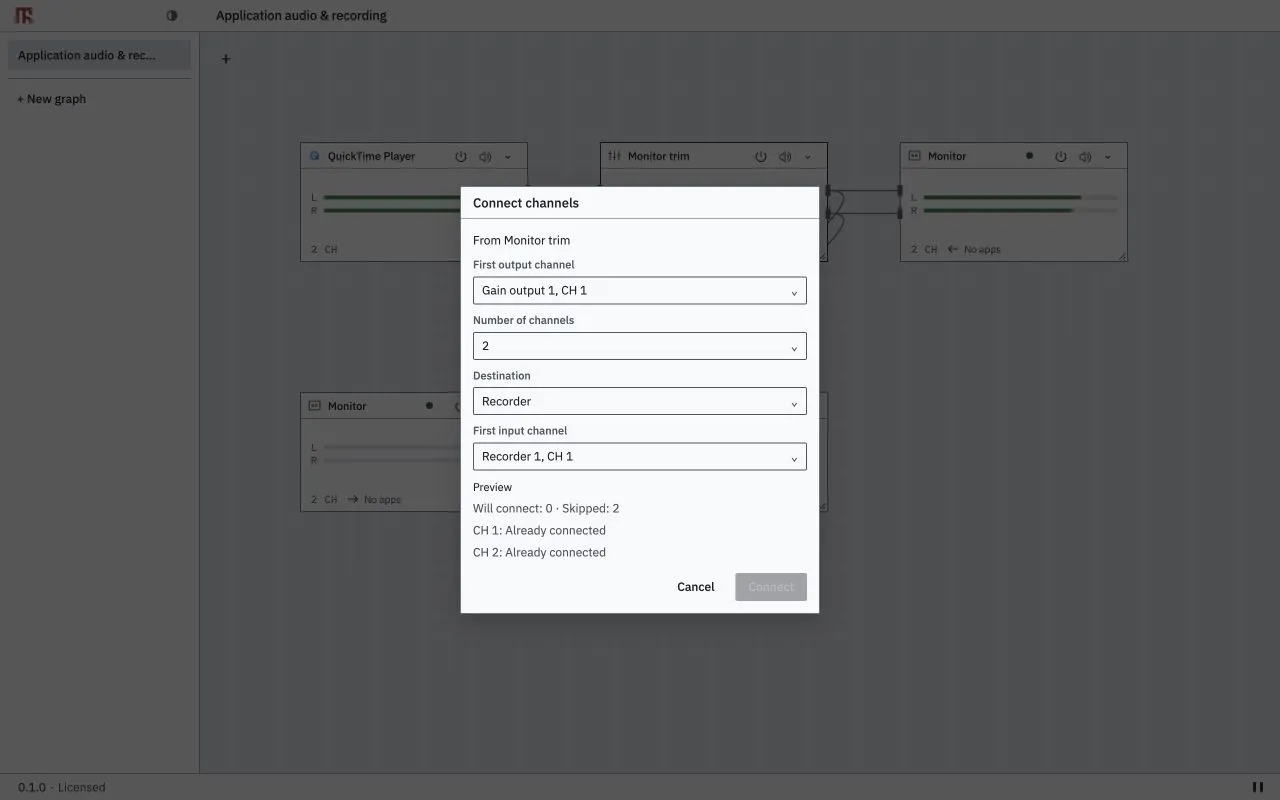
Tab to focus the source node. Enter or Space selects it. Arrow keys move the selected node; hold Shift for larger steps.Shift+F10 or the Context Menu key and choose Connect channels….First output channel and Number of channels, or keep an existing channel selection. Choose Destination and First input channel.Preview, including skipped connections and their reasons. Choose Connect, or Cancel to leave the graph unchanged.The same context-menu keys work on a focused cable or the canvas. Controls inside a node keep their own keyboard behaviour. Escape closes menus and dialogs.
Bypass passes dry audio while retaining its settings.Pause in the footer or status menu pauses all graphs and active recordings. Resume uses current audio. Paused audio is discarded. Virtual devices keep their IDs, names and formats.Closing the editor keeps routing, effects, capture and recording running in the background. On macOS, closing the window hides it; quitting the editor ends the editor process. On Linux, closing the window ends the editor process. Use Open MixRelay in the status menu to return.
Quit in the background status menu stops devices and loopback and finalizes recordings. Reopening MixRelay restores the saved devices. A saved global pause remains until you resume; manually paused or stopped recorders never start merely because you resume all audio.
Source gain in Options as needed.The source list contains discovered apps, not individual browser tabs or windows. A display-name change does not change which app is captured. Physical input and individual app capture nodes share the free edition’s two-input limit.
Capture requires 48 kHz and the relevant macOS permission. If a node is Offline, check that the app is running. If Select the application again appears, use the node’s application selection to choose the intended source. MixRelay does not choose a replacement when several sources match.
The app’s original playback and the MixRelay route can both affect what you hear. Check your monitoring routes if audio sounds doubled. MixRelay does not change the system default output. Source suppression, where used by the capture route, applies only to the path MixRelay owns; the current UI has no separate source-playback toggle.
Connect the channels you need. To hear the mix, add a physical output and connect it. MixRelay does not automatically change the system default device or add a hardware monitoring route.
The virtual device also provides basic loopback from OS playback to capture input. The editor’s graph mapping limit does not apply to this loopback.
Removing a graph reference does not remove the virtual device. Licensed device creation is available through New virtual device. Removing a device from the status menu also removes its saved device settings; other apps using it lose that device.
Open the virtual node’s Options to change Device name, Channels, sample rate and Bit depth. Only supported common settings are offered. Renaming requires a licence. The status menu’s channel choices are 2, 4, 8, 16, 32 and 64; the underlying device supports 1–64 channels per direction.
On macOS, supported rates are 44.1, 48, 88.2, 96, 176.4 and 192 kHz. Device formats are Float32, PCM16, packed PCM24 and PCM32. Linux offers combinations supported by PipeWire. Physical devices follow their own capabilities. Internal DSP uses Float32; changing device bit depth does not change the WAV recording format.
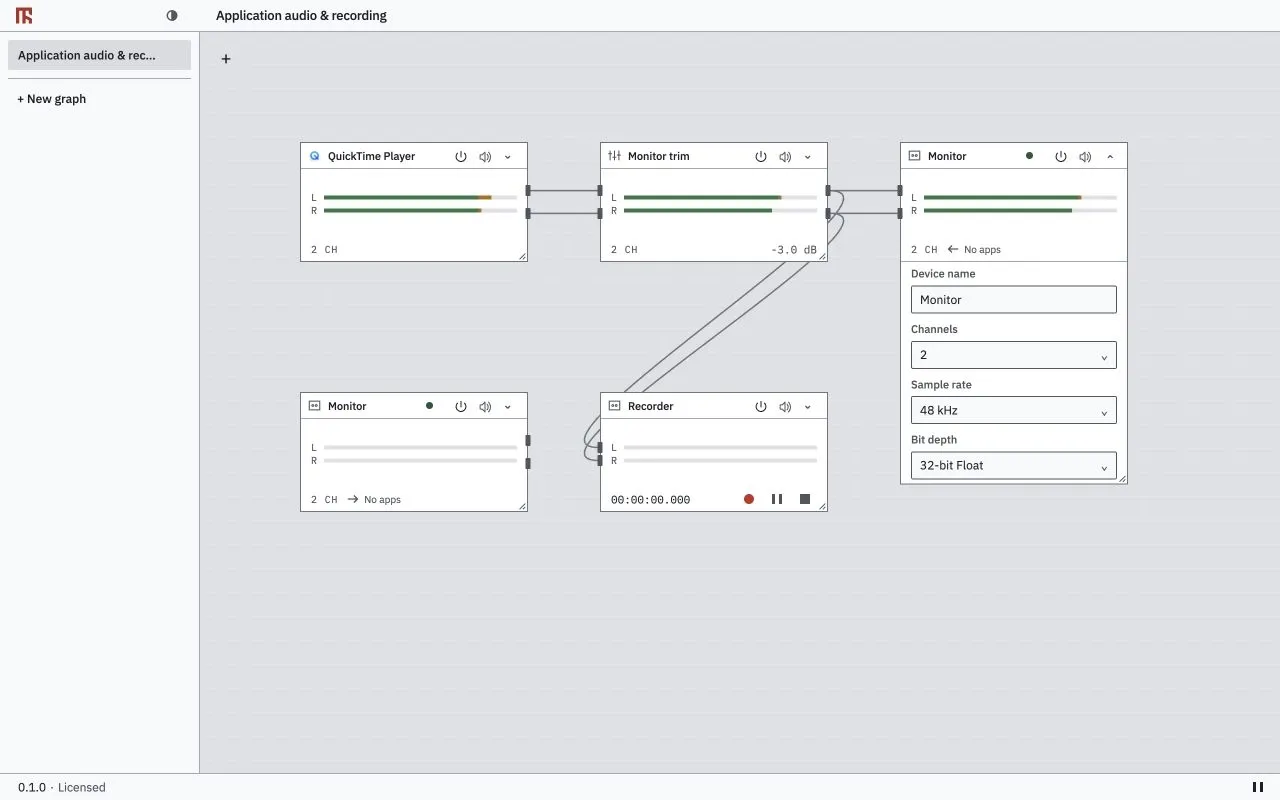
A format change briefly interrupts audio. If it fails, check the message and the current value before retrying. A save failure can mean the device changed but its new settings were not saved.
Where live buffer changes are supported, choose an I/O buffer value in the footer’s Processing buffer to apply it. On a recoverable error, choose a supported setting and use Apply to retry.
A smaller buffer can reduce buffer delay but may make dropouts more likely. Increase the buffer if audio breaks up.
There is no separate buffer selector for each virtual device. Other apps choose their own client buffers. Buffer delay is the duration of one processing buffer, not total input/output latency. It does not promise a PipeWire-wide quantum. Multiple physical devices may require sample rate conversion and clock synchronization.
Application capture requires 48 kHz. Change a virtual device’s sample rate in its device settings. The footer controls the processing buffer and has no processing sample-rate selector.
Some native plug-ins block live format changes because their preset state cannot be transferred.
Control input to reduce the main signal. Connect the control source separately; it is not mixed into the output.Bypass passes dry audio. Turning a node off blocks its signal. Built-in noise suppression and LUFS measurement are not available.
Choose a setting from Preset in the effect’s Options. Editing its values switches it to Custom.
Reverb: Small room, Studio, Hall, Karaoke, Tunnel and Fishbowl.
Delay: Short echo, Slapback, Vocal echo, Karaoke, Long echo and Ping-pong.
Choose Karaoke, Tunnel, Fishbowl, Radio or Double vocal from Add node → Processor → Effect chains to add connected effects together. Existing cables stay in place. Connect your source and output to the chain.
One Undo removes the insertion. Workspaces save the parameters and connections. No external impulse-response or sample installation is required.
Add node → Processor, choose Rescan audio effects. For a custom VST3, CLAP or LV2 location, choose Add plug-in folder….Channel layout and connect the required main, sidechain or auxiliary ports.Options for exposed parameters. A new plug-in node opens its native editor once when available. Use Open to reopen it.On Linux, plug-in editor windows require X11 or XWayland. If an editor cannot open, use the plug-in parameters exposed in MixRelay when available.
If Effect search incomplete appears, open Scan issues and Technical details. Previously available effects remain listed when a scan stage fails. Correct the installation or folder and use Retry or rescan.
If a crashed plug-in offers Retry crashed plug-in: …, use that command to retry. If its editor cannot open, check the stated reason, such as no native editor or missing X11/XWayland.
Some AU/VST/LV2 sessions reject live format changes because native preset state cannot be transferred. The current session stays active; the requested new format is not applied.
WAV sample rate (Input rate follows the input when starting a take) and Bit depth: PCM16, PCM24 or Float32.Record. MixRelay creates the take’s filename. Use Pause, Resume and Stop as needed.Stop the take before changing recording settings. Settings stay locked while recording or paused.
Each take produces one RF64 .wav file, even beyond 4 GiB. Files are not split by size, so open them with an RF64-capable reader. MP3 recording is unavailable.
Resume continues in the same file. A paused interval adds no silence: record 10 seconds, pause for 5 seconds, then record 10 seconds to create a 20-second file. Recorded time counts the audio written to the file.
Global Pause also pauses active recorders. Global Resume does not start recorders paused manually or already stopped.
During a global pause, the recorder’s Stop still finalizes the WAV header and finishes the file. Closing the editor keeps recording; quitting background audio finishes open recordings.
Free recording allows one recorder, up to two channels and two hours of recorded audio per take. Paused time is excluded. At the limit, the file finishes normally and audio routing continues. A paused take still occupies the recorder allowance.
Paid access supports 1–8 channels per recorder and up to 16 recording sessions.
The time allowance is fixed when a take starts. Activating paid access later does not extend a free take, and licence expiry does not cut short a take started with paid access. Start a new take to use the current licence allowance.
If Recording error appears, check the chosen folder, write access and available disk space. Stop and check the saved file before starting another take.
Keep MixRelay background audio running. The editor window can be closed. A removed node must be reassigned explicitly. Commands that fail or disconnect are not queued for later playback.
Power turns node processing on or off. Mute silences its output while keeping processing. An off node must be powered on before other controls can act on it.
For Volume buttons, choose increase or decrease and a step of 0.5, 1, 2 or 3 dB. A Stream Deck + dial changes volume by the same step when rotated. Pressing the dial mutes if the target supports mute. Nodes without gain are not volume targets.
Recording lists recorder nodes only. Choose Record, Pause or Stop. Record resumes an existing paused take. The recording folder and format come from MixRelay’s recorder Options and are read-only in the property inspector.
The free virtual device supports up to 64 channels per direction, with its supported sample rates and PCM settings. Basic loopback and device use by external DAWs are separate from the editor’s four-mapping limit. You can save devices, graphs and mappings within the free limits.
A paid licence removes the free graph, input, output, mapping, plug-in and recorder quotas, while technical limits remain. It enables virtual-device creation and renaming.
The ongoing sale price is US$39, excluding tax; the list price is US$69. Lemon Squeezy handles payment and key issuance. Applicable tax and the total must be shown before payment.
Choose Buy a licence in Licence, complete checkout and activate with the issued key.
The licence covers one person on an unlimited number of their own computers. Do not share the key with others. Updates within the purchased major version are included; buying a later major version is optional. Personal and business routing, recording and broadcast use are allowed. OEM, bundling, resale, white-label use and integration into another product require a separate written agreement. Free use does not grant modification or redistribution rights.
Licence.Licence key and a Device name that identifies this computer.Activate. Use Check licence online for a manual online check.A successful online check enables 30 days of offline paid access from that check. Restarting or failed checks do not renew the period. The licence dialog shows the days remaining and the valid-until date.
Automatic checks run when background audio starts or the app first connects, with one shared attempt limit of 24 hours. There are no separate periodic licence checks during a running session.
Connection failures do not erase valid authentication or stop ongoing audio and recordings. If access expires or is revoked, new paid operations require valid access. Existing work is preserved; excess configurations are not automatically deleted. Free features remain available.
While online, open Licence and choose Deactivate this device on the computer you want to release. This removes that computer’s activation, not the key or other computers’ activations. Activate with the same key on your own other computer. Deactivating the old computer is not required to make room for another activation because your own computers are unlimited.
Reinstalling and remote deactivation are separate. Deactivate before uninstalling if you want to release the activation. If the old computer is unavailable or activation cannot be confirmed, contact support. Do not repeat activation when the app says support must resolve an uncertain result. Check the device clock if Device clock needs attention appears.
Request a full refund within 30 calendar days of purchase, without giving a reason. Contact [email protected] with the purchase reference. Statutory consumer rights remain. A full refund also deactivates the paid key. Free features remain available after a refund or device deactivation. An offline computer cannot receive a remote licence update immediately.
Use Check again when online. If a download is available, open its download action. MixRelay rechecks the catalogue before opening the link. It does not install automatically.
Save a .mix copy of important work. Quit recording and call apps, then run the new installer using the installation steps.
On Linux, close the editor and use Quit in the status menu to stop background audio before updating. Package installation rejects active MixRelay processes. On macOS, the installer requests that the app components quit.
Updates preserve your devices, graphs, settings, recordings and sign-in. Reopen MixRelay after installation and check the installed version.
/Applications/MixRelay/Uninstall MixRelay.app.Delete saved MixRelay settings unchecked to keep virtual-device settings.The settings-deletion option removes saved device settings only. On macOS, graphs, recordings, exported work and paid authentication remain. Moving only the editor app to Trash leaves the audio components installed.
If removal fails, check the message and current installation before retrying; some components may already be gone. Cancelling administrator authorization leaves the product unchanged.
Close the editor and choose Quit in the background status menu, then open the installed Uninstall MixRelay application as your normal user. Leave the saved-graphs-and-settings deletion option unchecked to keep those files.
The remover uses your session’s polkit authentication agent and package manager. Successful removal clears the local paid-licence sign-in; recordings and exported projects remain.
You can instead remove the mix-relay package directly. Choose only your distribution’s command. Direct package-manager removal preserves per-user settings and local authentication.
sudo apt remove mix-relaysudo dnf remove mix-relaysudo pacman -R mix-relayIf authorization cannot appear, check that your desktop session has a polkit authentication agent. If the app was removed but cleanup failed, follow the displayed recovery message. Do not delete unrelated audio services or user folders.
Graph → device in MixRelay.Processing buffer if the adapter supports changing it.If a device is unavailable, reconnect it and reselect it where necessary. If a saved format was rejected or device rollback failed, reapply a supported format as the message directs. Engine connection and audio processing are separate: a reachable engine can still report stopped or failed audio.
If MixRelay pauses after repeated engine failures, review recent changes before choosing Resume. Docker-backed audio is unsupported; use a normal Linux user session with the required PipeWire and WirePlumber versions.
Not applied does not confirm that audio is running. If the app reports that edits were preserved, check the current engine state and use Retry when ready. Do not repeat an uncertain command rapidly.
If persistent conflicts offer a choice, use Overwrite engine with these edits to apply your edits or Discard edits and reload engine to discard them and load the engine state.
Audio can keep running even when saving fails. Save a workspace copy before closing if possible.
For layout recovery, Save current layout retries saving the current layout; Load saved layout replaces it with the saved layout. For effect errors, follow the plug-in recovery guidance. For licence errors, check connectivity and the device clock; contact support if the activation result is uncertain.
Save Diagnostic Report….dump.json. Review it and attach it to a support email if requested. Saving does not upload it.The diagnostic report contains version, OS, architecture, device-format, runtime-state and numeric-counter information. It excludes audio, memory dumps, raw logs, authentication, user paths, device names and IDs, graphs and app lists.
It is at most 256 KiB with up to 64 device summaries. Unavailable values are marked unavailable. Exporting a report does not start stopped audio.
Only one export runs at a time. Cancelling creates no file. Replacing an existing file requires the OS overwrite confirmation. If saving fails, check the destination and retry. See support contact for what else to include.