Devices and virtual endpoints
Use MixRelay IO to exchange audio with other apps. Its device format is separate from the recording format.
Choose the audio direction
The default virtual device is MixRelay IO.
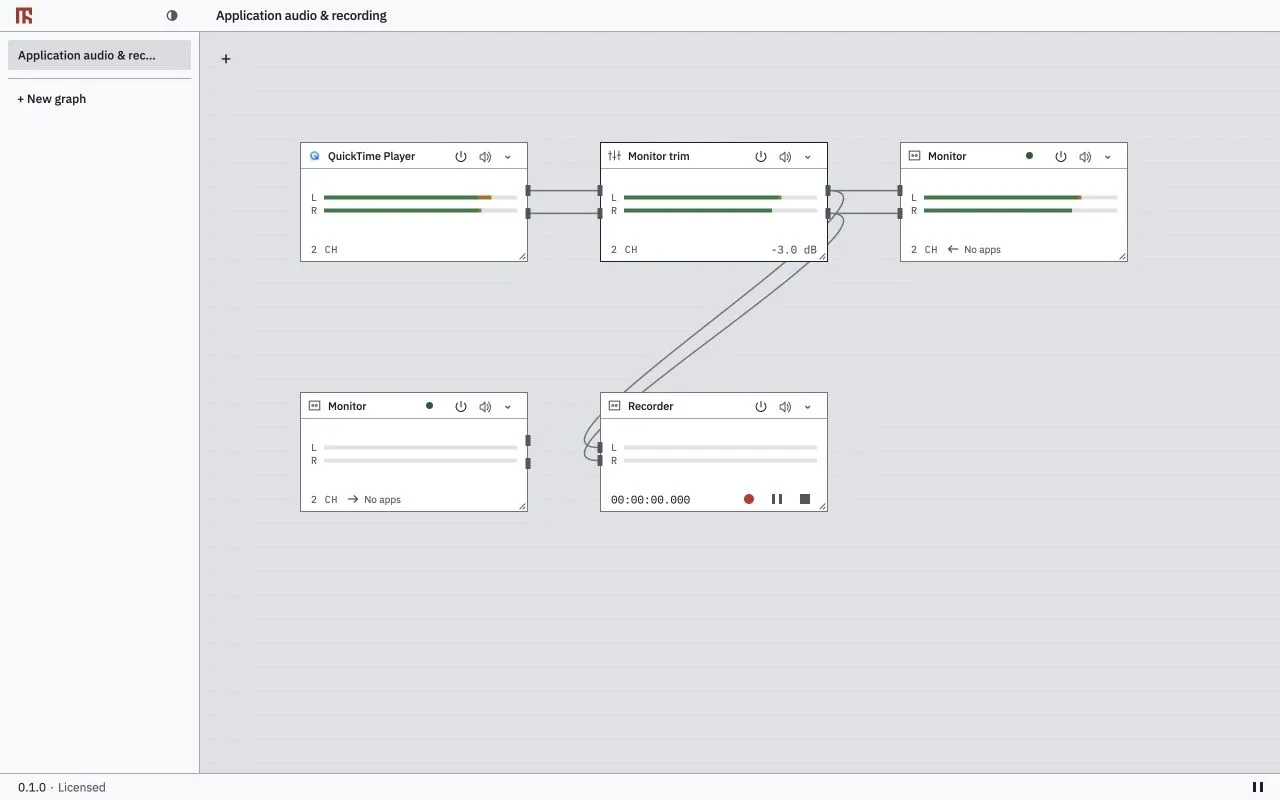
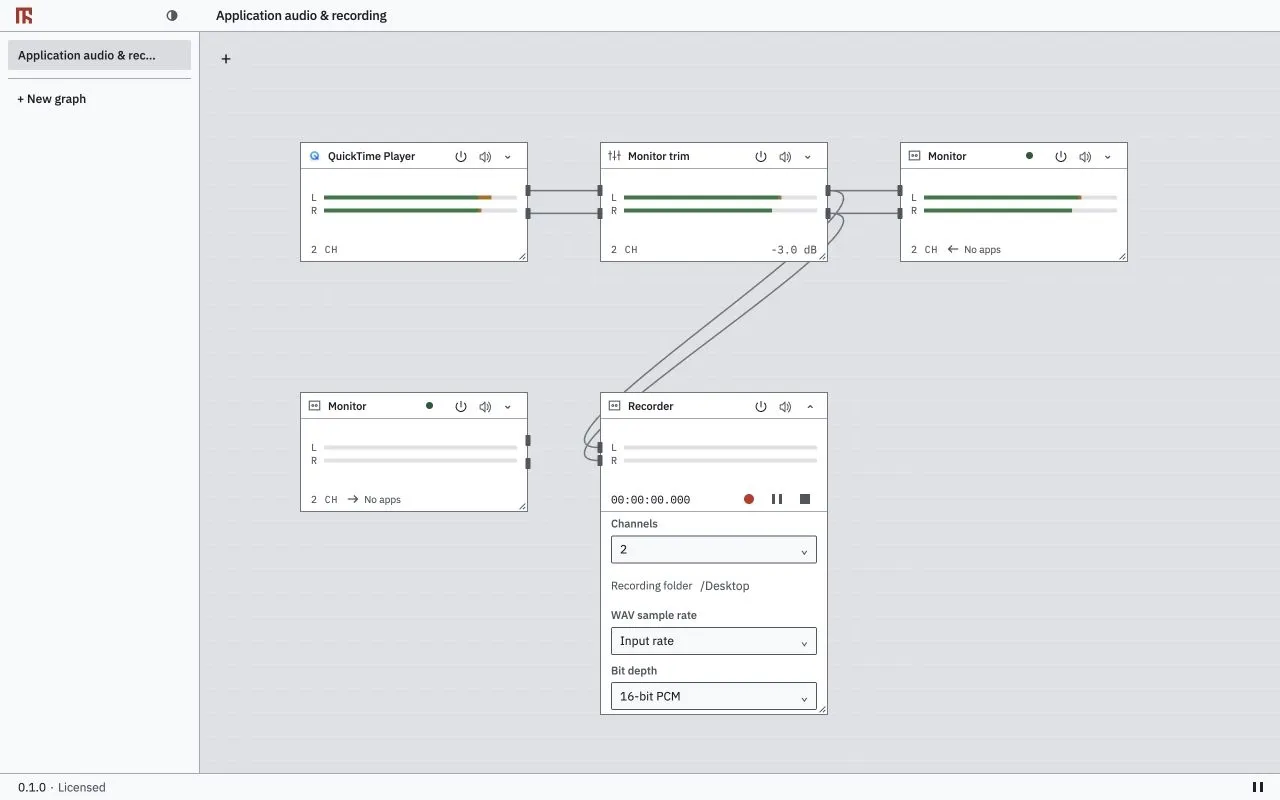
To receive audio another app plays to this device, select it under Add node → Source → MixRelay Virtual I/O (Device → graph).
To send the graph mix to an app such as OBS, select the device under Add node → Output → MixRelay Virtual I/O (Graph → device). In the receiving app, choose MixRelay IO as the audio input.
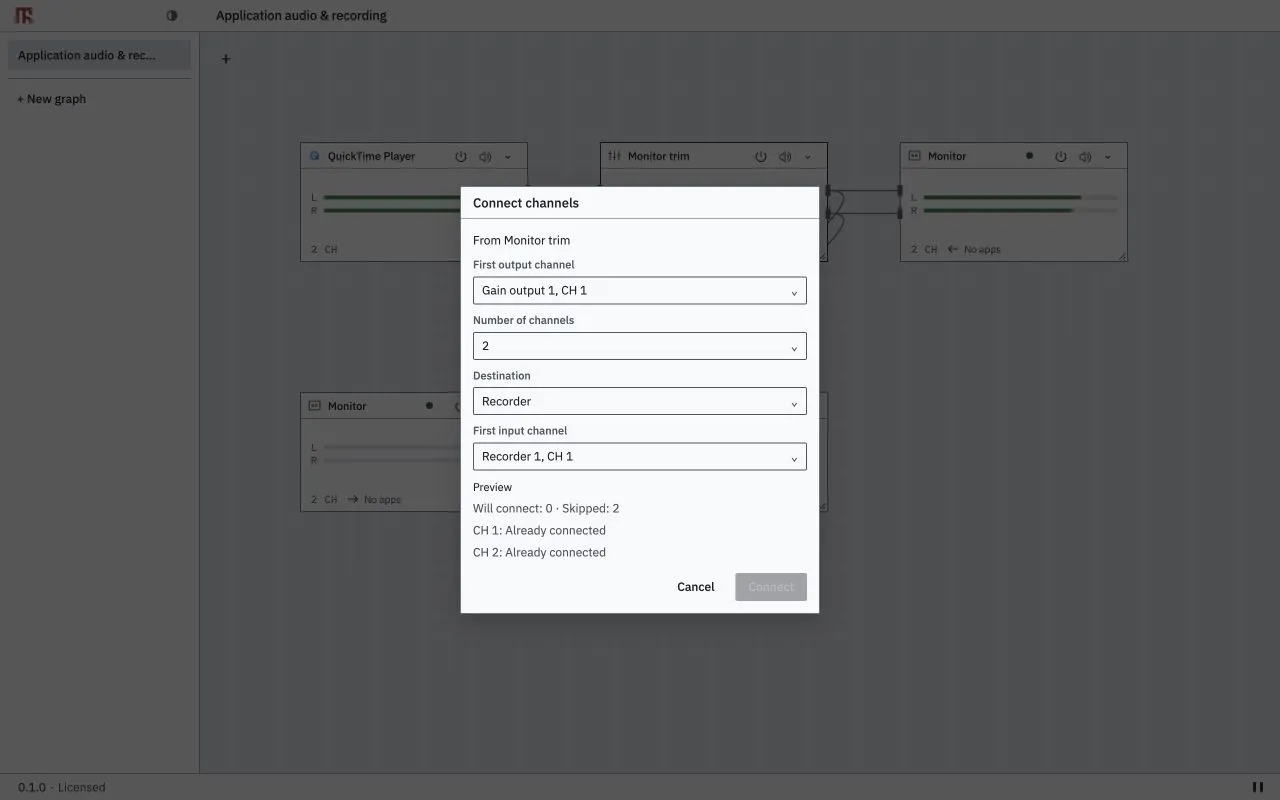
Connect the channels you need. To hear the mix, add a physical output and connect it. MixRelay does not automatically change the system default device or add a hardware monitoring route.
The virtual device also provides basic loopback from OS playback to capture input. The editor’s graph mapping limit does not apply to this loopback.
Removing a graph reference does not remove the virtual device. Licensed device creation is available through New virtual device. Removing a device from the status menu also removes its saved device settings; other apps using it lose that device.
Channels, sample rates and PCM
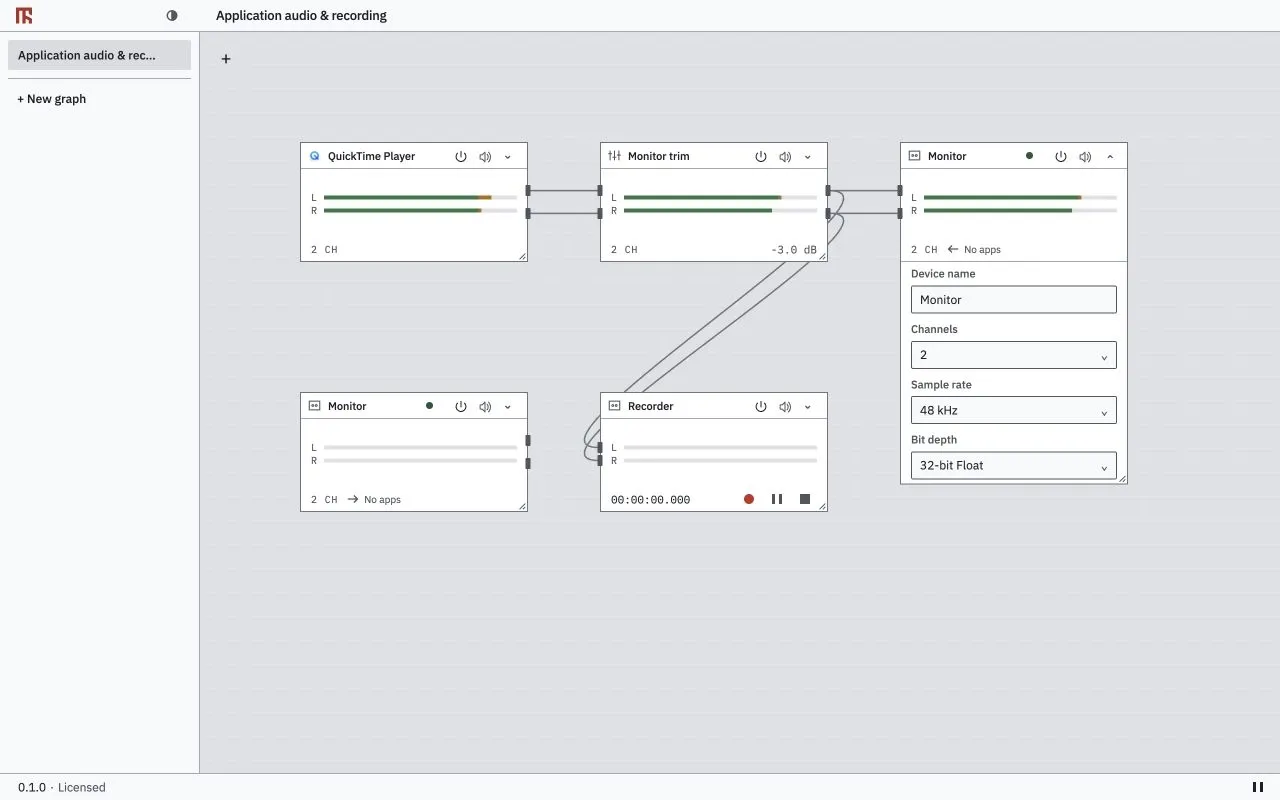
Open the virtual node’s Options to change Device name, Channels, sample rate and Bit depth. Only supported common settings are offered. Renaming requires a licence. The status menu’s channel choices are 2, 4, 8, 16, 32 and 64; the underlying device supports 1–64 channels per direction.
On macOS, supported rates are 44.1, 48, 88.2, 96, 176.4 and 192 kHz. Device formats are Float32, PCM16, packed PCM24 and PCM32. Linux offers combinations supported by PipeWire. Physical devices follow their own capabilities. Internal DSP uses Float32; changing device bit depth does not change the WAV recording format.
A format change briefly interrupts audio. If it fails, check the message and the current value before retrying. A save failure can mean the device changed but its new settings were not saved.
Processing buffers and latency
Where live buffer changes are supported, choose an I/O buffer value in the footer’s Processing buffer to apply it. On a recoverable error, choose a supported setting and use Apply to retry.
A smaller buffer can reduce buffer delay but may make dropouts more likely. Increase the buffer if audio breaks up.
There is no separate buffer selector for each virtual device. Other apps choose their own client buffers. Buffer delay is the duration of one processing buffer, not total input/output latency. It does not promise a PipeWire-wide quantum. Multiple physical devices may require sample rate conversion and clock synchronization.
Application capture requires 48 kHz. Change a virtual device’s sample rate in its device settings. The footer controls the processing buffer and has no processing sample-rate selector.
Some native plug-ins block live format changes because their preset state cannot be transferred.