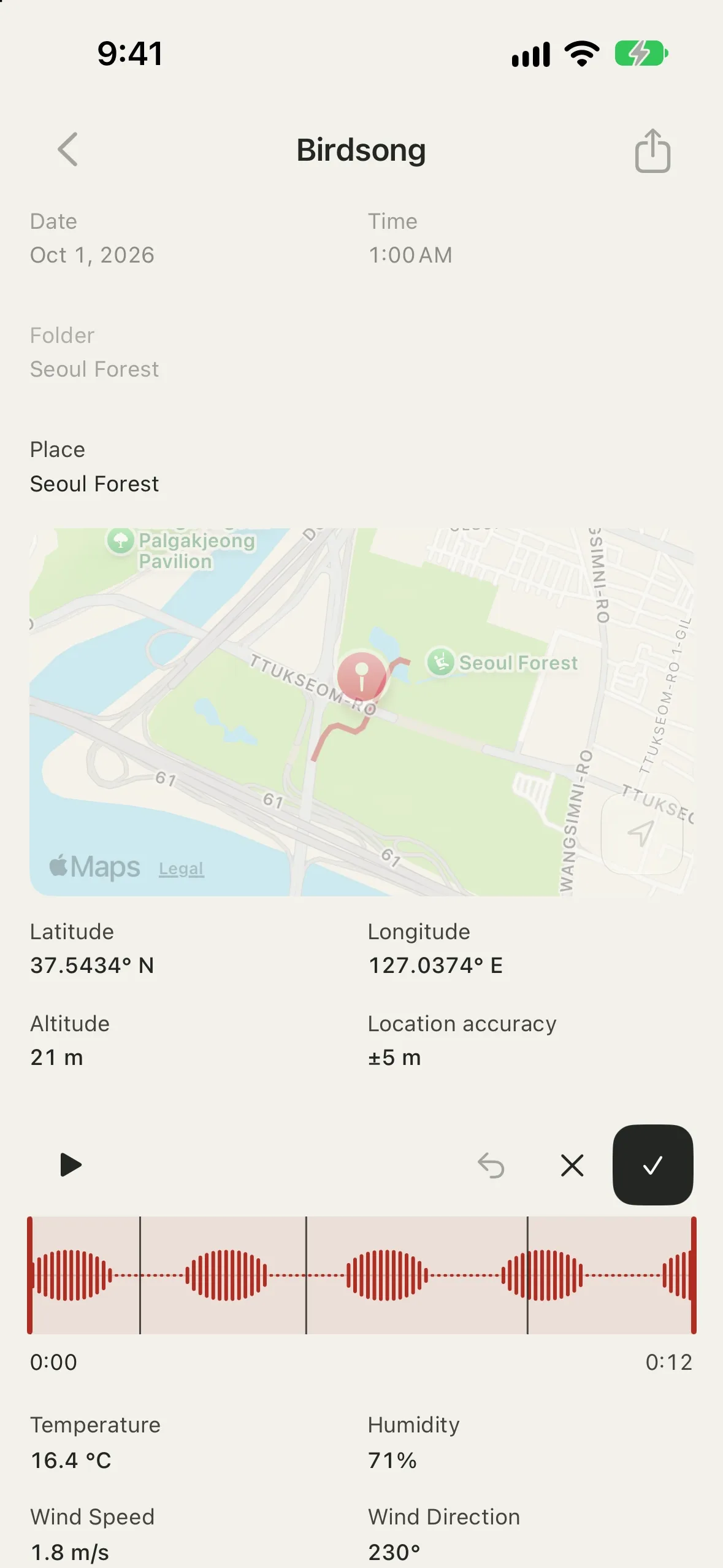
Topofon records sound with its place, time and weather. Each log can also hold a photo, notes, markers and a transcript.
Screenshots use the English interface and sample data.
- Devices: iPhone and iPad with iOS 26 or later; Apple Watch with watchOS 26 or later, as a remote for the recorder on iPhone
Layout
Move between three screens with the tabs at the bottom.
Tab | What it does |
|---|
Logs | View logs as a list or on a map, create logs and record |
Compass | See your heading, the sun's directions and the wind over a map |
Settings | Choose storage, input device, recording format, monitoring and more |
While you record, the tabs are hidden and only the recorder is shown. On wide screens such as iPad, the list and the log detail appear side by side.
Permissions
Topofon asks for these permissions when it first needs them. If you don't allow one, the app still works; only that feature is unavailable.
Permission | Asked when | If not allowed |
|---|
Microphone | You first record | You can't record |
Location | You first create a log, or open the map or compass | Location, address and weather aren't filled in. You can still set the location on the map |
Precise location (temporary) | You open the compass with only approximate location allowed | Your position on the compass map shows as a large circle |
Camera | You take a photo for a log | You can't take photos, but you can still choose one from Photos |
Change permissions in your device's Settings > Topofon. When a permission is off, choose Open Settings in Topofon's alert to go there.
Creating a log
- In the Logs tab, tap + (New Log). To record right away instead, see Starting.
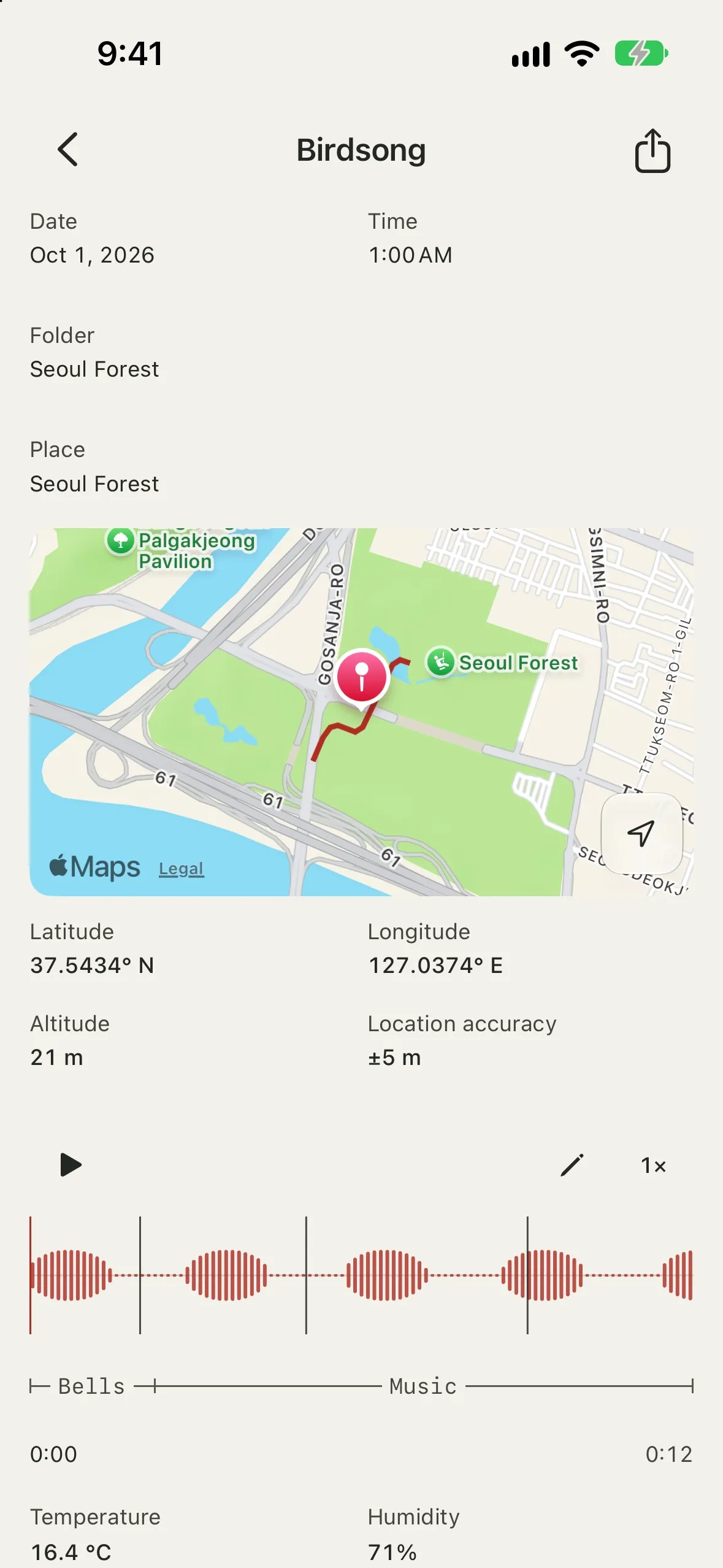
- The new log fills in your current location:
- latitude, longitude, altitude and location accuracy
- place: the address found for the location
- weather: temperature, humidity, wind speed, wind direction and pressure (sea-level), measured at the nearest weather station that reports them, or from the Open-Meteo forecast model where no station is close
- Tap the title at the top to name the log. Leave it empty to use the place name. Without a place, the title follows the time of day and the type of record, such as Morning recording or Night field note.
- Tap Save (the checkmark) at the top right. Going Back without saving discards the new log.
Route
Turn on Record Route While Recording in a new log to record your path during that log's recording, including movement while paused.
- The route is drawn on the log's map and shared as a GPX file (.gpx) with the audio.
- iPhone shows its location indicator while it records, and it keeps recording with the screen off.
- It needs location access; Always isn't required.
- Recording again replaces the route with the new recording's.
Recording
Starting
- A new log, at once: tap Record to New Log (the record button) at the bottom of the Logs tab. Topofon makes a log in the folder you're viewing and starts recording; its location, place and weather fill in while it records. Stop opens the new log.
- A log without audio: tap the recording placeholder in the log detail.
- A log with audio: tap the microphone button (Record Again) and confirm. Finishing the new recording replaces the previous recording and transcript. If you cancel or recording fails, the previous recording stays.
Recording starts as soon as you tap, using the input device, channels and format chosen in Recording settings.
With Pre-roll on, the record button shows how far back a recording started now would reach, such as Pre-roll −0:12. The recording begins from that point, and its start time is set that much earlier.
The recorder
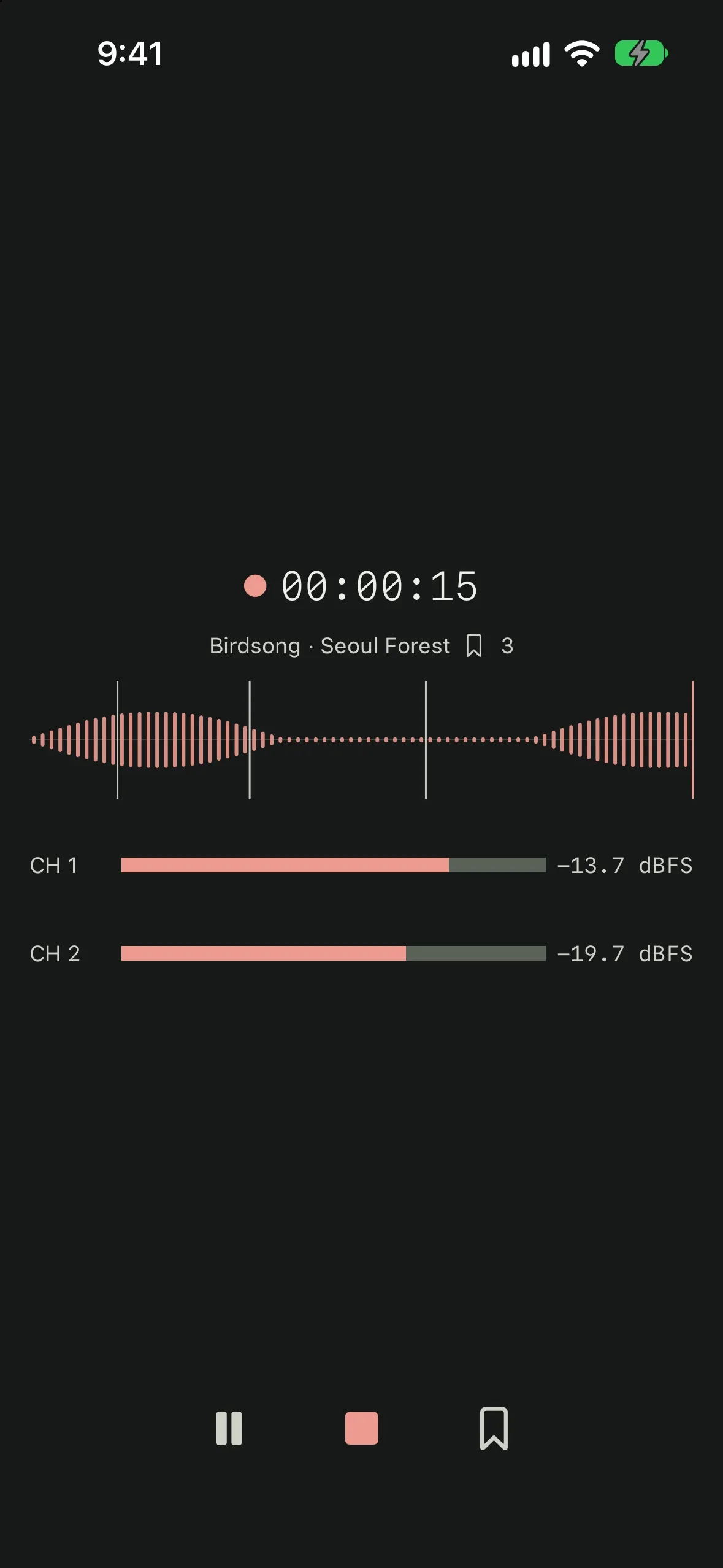
- Recording indicator and elapsed time
- The log's title and place, and the number of markers
- The waveform of the whole recording
- Input level for each channel (dBFS)
Controls
Button | What it does |
|---|
Pause / Resume | Stops and continues recording. The real time of each part is recorded |
Marker | Marks the current point. Works while paused too |
Stop | Saves the recording and returns to the log |
To resume recording, the same input device must be connected. If its channel count or sample rate changed, stop and record in a new log.
Recording at once
You can start recording without opening the app.
- Action Button: in Settings > Action Button, choose Controls > Topofon > Record to New Log.
- Control Center and Lock Screen: add the Record to New Log control.
- Shortcuts: use Record to New Log in the Shortcuts app.
- Apple Watch: open Topofon and tap Record to New Log. You can also add its widget to the Smart Stack or a watch face to open the app.
The watch shows elapsed time, the log title and marker count, with Pause/Resume, Stop and Marker controls. iPhone records the audio, so keep it nearby with Topofon installed.
During recording, the Lock Screen and Dynamic Island show elapsed time with Marker, Pause/Resume and Stop Recording controls. If Topofon is open on iPhone, it shows the recorder; stopping opens the log.
A recording started with these immediate controls begins without pre-roll because it was not waiting beforehand.
When recording is interrupted
If audio is interrupted — for example by a phone call or by unplugging the input — Topofon stops and saves what was recorded so far. It doesn't start recording again on its own.
If the app quits unexpectedly, it handles the interrupted recording on the next launch:
- If you were recording again, the previous recording stays and the interrupted new one is removed.
- If it was the log's first recording, a WAV is recovered up to the moment it stopped. An AAC file that wasn't finished can't be recovered; the log is kept.
Recording settings
Set these in the Settings tab. They can't be changed while recording.
Microphone and channels
- Device: choose any input iOS offers, such as the iPhone microphone or a connected audio interface.
- Channels: enable at least one channel. With iPhone's built-in microphones, two channels record stereo (1 left, 2 right); one records mono.
Left and right follow how you hold iPhone when recording starts, or when pre-roll starts waiting. Turning iPhone before recording resets the direction and starts without the pre-roll already held. Bluetooth headphones cannot monitor while stereo records.
External microphones, audio interfaces and Bluetooth microphones must be available to iOS as recording inputs. If an input is missing, check its connection, power and iOS compatibility. Channel counts and sample rates depend on the device and iOS.
Format
Format | Options | Notes |
|---|
WAV | Bit depth: 32-bit float, 32-bit integer, 24-bit, 16-bit, 8-bit
Sample rate: 44.1, 48, 96, 192 kHz | If the device runs at another sample rate, the current rate is shown below. When a file passes the WAV size limit, recording continues as RF64 |
AAC (.m4a) | Bit rate: 64–320 kbps | Records mono or stereo (up to 2 channels) at 48 kHz. Files are small |
32-bit float stores exactly what the input device sends. Values above full scale aren't cut off, so you can bring them down later. Sound already clipped in the microphone or input device can't be recovered. The integer formats clip values above full scale.
Monitoring
- Turn on Monitoring While Recording to hear what you record through headphones or an external output. The first two selected channels go to left and right.
- Topofon does not monitor through the iPhone speaker. Connect headphones, Bluetooth, USB or a line output. Without one, Settings shows a reminder and keeps your monitoring setting.
- Choose where the sound goes in Output device.
Pre-roll
- With Pre-roll on, the microphone keeps recent audio while a log you can record is open. Tapping Record starts with that stored audio. Choose Off, 5 seconds, 10 seconds, 30 seconds or 1 minute.
- Meanwhile iPhone shows its microphone indicator in the status bar. If monitoring is on, you also hear the input in your headphones.
- Pre-roll pauses during playback, waveform skimming and range editing. It restarts afterwards and begins keeping audio from that point.
- At high sample rates or with many channels it can keep less time. The label next to the record button shows how far back it really reaches.
- It stays off until the microphone is allowed. Once you allow it on your first recording, pre-roll works from then on.
Display
- Temperature unit: Celsius (°C) or Fahrenheit (°F)
Browsing logs
List and map
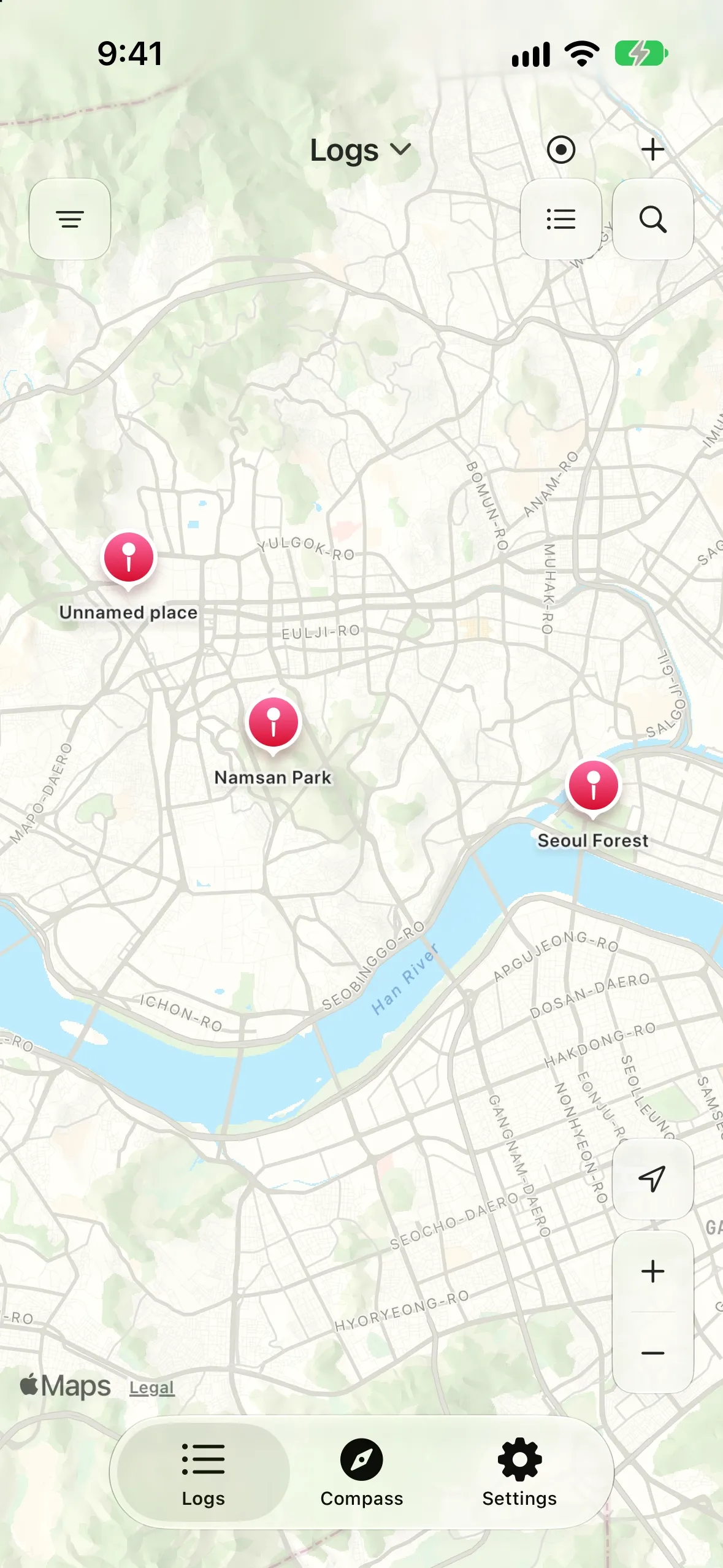
The button at the top of the Logs tab switches between list and map. Topofon remembers your choice.
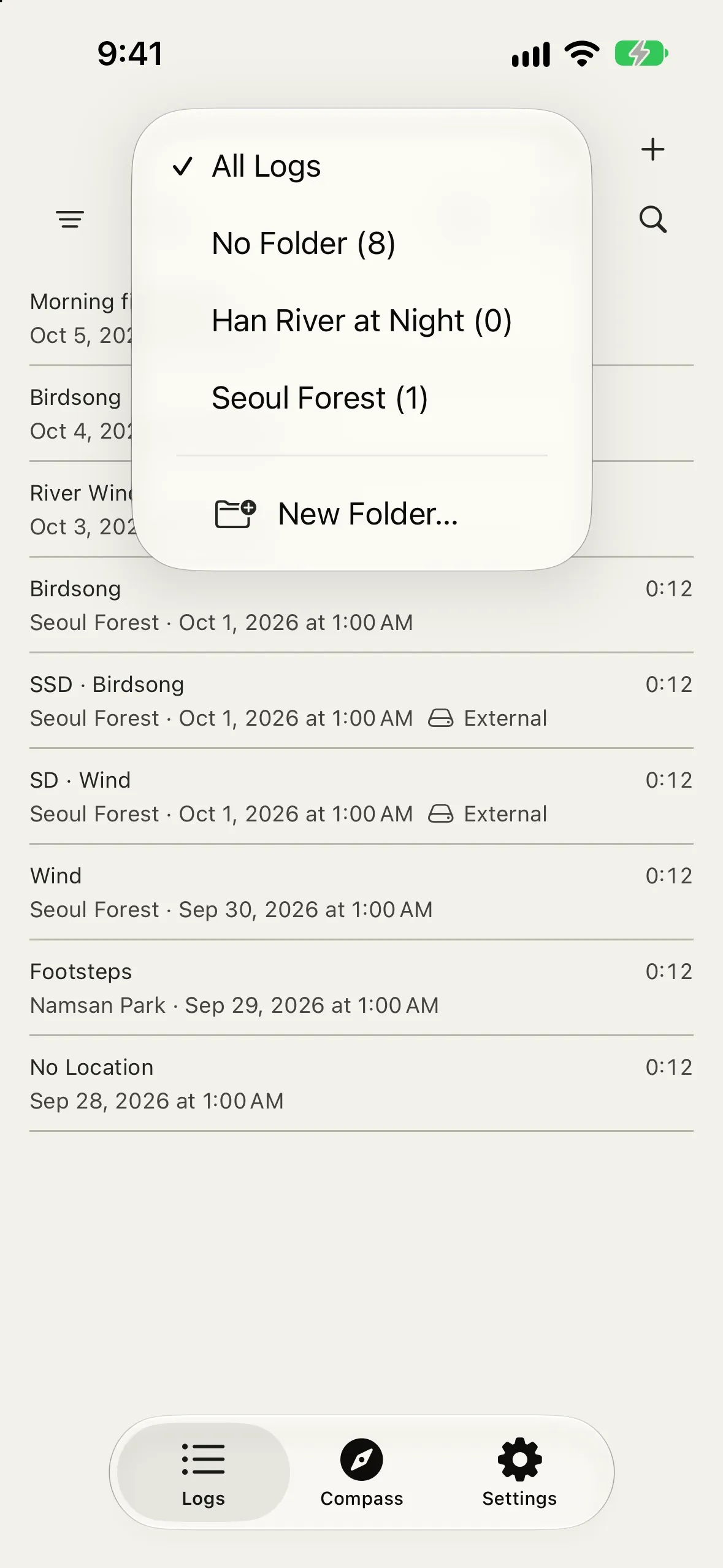
- List: shows title, recording length, place and date. Logs on an external drive are marked External.
- Map: logs within 75 m are grouped into one place. Tap a place to open its log, or to see a list when it has several. Nearby places merge into numbered clusters; tap one to zoom in.
- The location button moves the map to where you are, once.
Search, date and sort
- Search: finds text in titles, places and notes. The search stays applied after you close the search field.
- Date Filter: pick a start and end date and tap Apply. Tap All to clear it.
- Sort (in the list): Newest First or Oldest First
Search and the date filter also apply to the map and the compass map.
Folders
A log can go in one folder (folders don't nest).
- In the list, open View Options > Folder and choose All Logs, No Folder or a folder. In split layouts, you can also tap the list title. The list, map and compass map show only the selected folder's logs.
- Choose New Folder… in the same menu to create and open a folder. While viewing a folder, use Rename Folder… or Delete Folder… to manage it.
- New logs, made with + or the record button, go into the folder you're viewing.
- In a log's detail, Folder puts it in a folder or makes a new one.
- To move several logs at once, tap Select, choose the logs, then tap Move to Folder.
- Deleting a folder permanently deletes its logs, audio and photos. The confirmation shows how many logs the folder contains.
Deleting logs
- Tap Select and choose the logs to delete.
The logs' audio and photos are deleted too. This can't be undone.
Editing a log
Changes in the log detail are saved automatically.
- Title: tap the title at the top. An empty title shows the log's automatic title (its place, or the part of the day).
- Date and time: tap to pick with the wheels, or tap Keyboard to type.
- Folder: choose the folder for the log, or make a new one.
- Place: type any name instead of the address. A name you type stays when the location changes.
- Location: move the map so the center pin sits on the spot, or tap Current location. For a log without a location, tap Set Location.
- Observations: type or correct temperature, humidity, wind speed, wind direction and pressure. The source shows the station (provider, station and distance), Open-Meteo, or Manual.
- Photo: each log has one square cover photo. Take one or choose one from Photos, then crop it.
- Notes: write what you heard or noticed.
Playback and editing audio
Playback
- Drag across the waveform to hear your way to a spot.
- Playback speed: 0.5×, 1×, 1.5×, 2×
- Tap a marker to jump to it. A selected marker can be deleted.
- Multichannel recordings play as a stereo mix.
- Below the waveform, the sounds that stand out in the recording appear as stretches (birds, wind, rain, water, waves, vehicles, voices, music and more). Tap one to play from where that sound begins. A new recording shows Listening for sounds… briefly the first time you open it.
Editing the range
Tap the edit button (pencil) to choose the range to keep. The original recording file never changes.
- Drag the start and end handles.
- Undo and redo are available.
- Revert to Original returns to the unedited recording; tap Save to keep that.
- Cancel (✕) leaves without saving. If you changed anything, Topofon first asks you to confirm Discard Changes. Previously saved edits remain.
- Keyboard: ⌘Z undo, ⇧⌘Z redo, ⌘S save, Esc cancel
The edited range is what plays and what you share.
Transcription
Topofon turns speech in a recording into text on your device. On supported devices, the Transcript row appears in logs that have audio.
- In the log detail, tap Transcript.
- Choose the Language. The device language is selected at first.
- Transcription continues after you close the screen. Requests are handled one at a time, in order.
- It waits while you record, in Low Power Mode, or while the device is too warm.
- A language used for the first time may need its speech model downloaded.
- Tap a time in the transcript to play from there.
- If it fails, tap Retry Transcription. To stop it while processing, tap Cancel Transcription.
Sharing and export
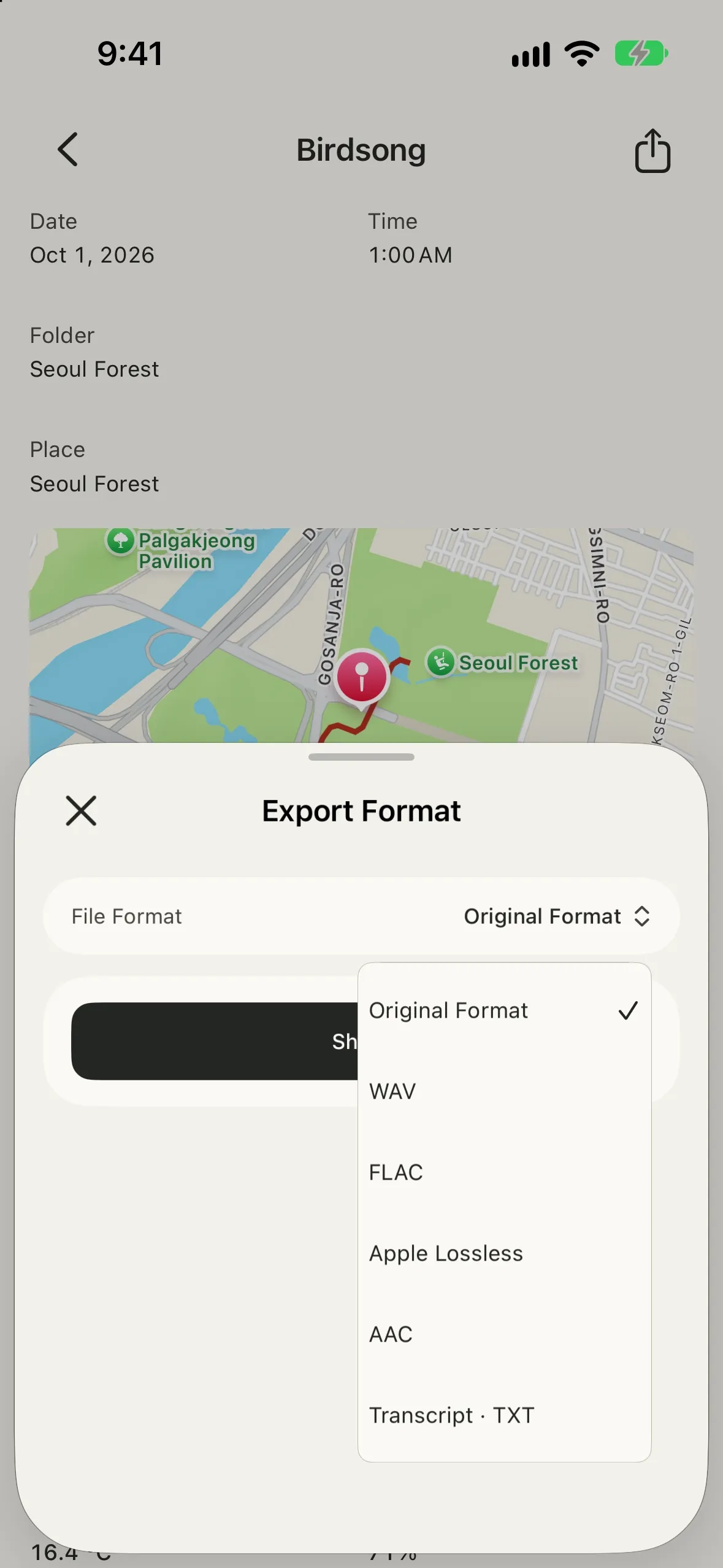
Tap Share at the top right of the log detail, choose a file format, then tap Share. When the files are ready, the iOS share sheet opens.
File format | What you get |
|---|
Original Format | The recording as recorded. If it wasn't edited, it isn't re-encoded |
WAV | Choose the bit depth. WAV Layout: Automatic, Split at 2 GB, or RF64 |
FLAC | 16-bit or 24-bit lossless compression. Title, date, notes and cover photo as tags; marker positions as CUESHEET indices |
Apple Lossless | 16-bit or 24-bit lossless compression (.m4a). Good for Apple apps; carries the same tags as AAC |
AAC | Choose the bit rate. Only for mono or stereo recordings at 44.1 or 48 kHz |
Transcript · TXT | When a transcript exists, its times and lines as a text file |
- An edited log exports the edited range.
- Every audio file comes with a Markdown document (.md) of the same name. It holds the title, notes, recording time, place, location, weather, markers and transcript.
- The file's tags carry the title, notes, date and cover photo. WAV files also carry the complete log in a tag.
- FLAC and Apple Lossless exports convert a 32-bit float recording to integers, clipping values above full scale. Export WAV at 32-bit float to keep that headroom.
- RF64 files open only in apps that support RF64.
Markers inside the file
File | Marker information |
|---|
WAV | Marker names and positions; detected sound names, starts and lengths |
RF64 | The same, with 64-bit positions. Beyond the 32-bit range, sound regions become named start and end markers |
FLAC | Exact sample positions in CUESHEET indices; no names or sound regions |
AAC / Apple Lossless (.m4a) | Named chapters. A Start chapter precedes a first marker later than zero; markers at the same position share a chapter title |
Edited exports use the edited timeline. Split WAV marker positions are relative to each file's start. A marker at the end of an M4A file has no chapter duration, so it stays in the accompanying document.
The receiving app must support the embedded marker structure. In Logic Pro, use Navigate → Other → Import Marker from Audio File. See the export specification for format rules and official references.
Compass
- Heading: the direction you face and its accuracy — to true north when location is allowed, to magnetic north otherwise.
- Sun: today's sunrise and sunset times and directions
- Wind: wind speed and direction
- Location and weather: latitude and longitude, temperature, humidity and source
While the compass is open, the weather is looked up again after you move more than 1 km or every 5 minutes. Observations older than 2 hours aren't shown.
- Current location: moves the map to where you are.
- Export Compass Image: makes an image of the visible map and compass to share.
Without location access, the heading keeps working to magnetic north, but the sun and wind directions are hidden because they need true north.
When the heading is inaccurate, iPhone shows its calibration screen. Move iPhone slowly in a figure eight as shown to calibrate.
Storage
This device
Each log has a folder in the app's storage containing audio, log information (log.json), the cover photo and waveform data (.peaks). Find them in Files > On My iPhone > Topofon.
Deleting the app also deletes logs stored on the device. Topofon does not sync with iCloud, so share important logs or move them to an external drive before deleting it.
External drives
You can record straight to a USB drive, an SD card or similar.
- Go to Settings > Storage > Add external storage and choose the drive itself, not a folder.
- Choose the drive in Recording location.
- New logs are saved there. Existing logs keep their original location.
- When you reconnect a registered drive, Topofon asks whether to use it.
- Topofon creates a
Topofon folder on the drive. Logs on the drive stay when you delete the app.
- If the drive is disconnected or fills up while recording, that recording isn't saved; the existing log stays as it was.
Troubleshooting
Location isn't filled in
- Check that location is allowed in Settings > Topofon.
- Indoors, finding your location can take longer or be less accurate. You can also set the location on the map.
My position shows as a large circle
- Only approximate location is allowed. Turn on Precise Location in Settings > Topofon > Location.
Weather is empty
- Weather needs an internet connection and a location. If it couldn't be found, you can type the observations yourself.
Recording doesn't start
- Check that the microphone is allowed in Settings > Topofon.
I can't hear monitoring
- Connect headphones or an external output. Topofon doesn't monitor through the iPhone speaker.
I can't choose AAC
- AAC supports up to 2 channels at 44.1 or 48 kHz. Select 2 channels or fewer.
There's no Transcript row
- It appears only on supported devices, in logs that have audio.
I can't create a new log
- Check that the external drive chosen as the recording location is connected.
Data and privacy
- No accounts, no ads, no tracking.
- Logs are stored only on your device or on an external drive you choose.
- A route is recorded only while recording a log set to record one, and is stored with that log.
- To look up the weather, your current coordinates or the area around them are sent to weather services: national weather services (such as KMA, JMA, DWD, MeteoSwiss and NWS), NOAA's Aviation Weather Center, and Open-Meteo.
- Maps and address lookup use Apple Maps.
- Transcription and sound detection run on your device. For a language used for the first time, the speech model may be downloaded from Apple.
Weather data by national weather services, NOAA and Open-Meteo.com. Each log links the provider of its values.